Connecting a cloud account or code repository
AWS, Google Cloud, Azure, GitHub, and Microsoft 365 — one read-only role, scanned nightly.
A connector is a grant of read-only access, and only read-only access — nothing here is ever asked to write to your infrastructure. Once connected, a scan runs here every night and reports what it found: a bucket open to the internet, a GitHub organization not requiring two-factor, a branch anyone can force-push. Access can be revoked from your own console at any time; nothing about disconnecting is a support ticket.
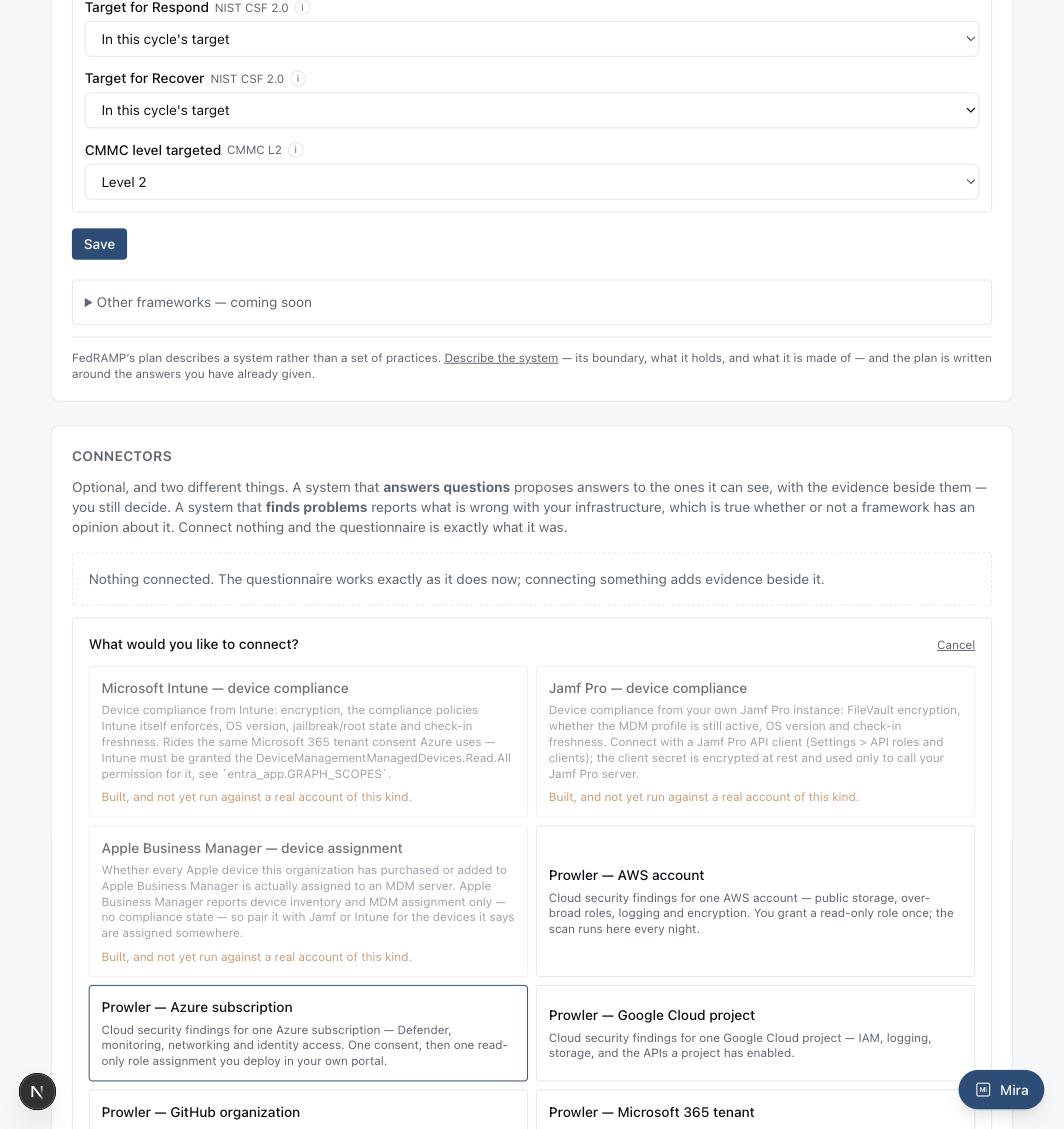
How to set it up
- AWS — deploy a small CloudFormation template in your own account; it creates a read-only role this deployment assumes, secured by an account-specific external id.
- Google Cloud — a customer-created, read-only service account this deployment impersonates. No credential of ours is ever created in your project.
- Azure — one consent to a Microsoft application, then a Reader role assignment you deploy in your own portal for the subscription you want scanned.
- GitHub — install the MiraShield GitHub App on the organization you want scanned. One click, no token to paste.
- Microsoft 365 — a tenant administrator consents once on Microsoft's own screen. The same consent is what lets Azure be connected afterward, since a subscription is granted to the principal that consent creates.
How to use it
From Settings, click "Add a connector" and pick the provider. Connectors that read more than your configuration have their own articles: Entra ID, GitHub repositories and alerts, and Supabase. Available ones walk you through their own grant flow; greyed-out ones are built but not yet verified against a real account of that kind, and say so rather than pretending otherwise. Once connected, nothing else is required — findings appear on the Findings screen the morning after the first scan.